
A 1004-Spoon gift arrives
Roulette & stream tools
Use gift roulette, auto greetings, room rules and stream notes.
Chat, requests and music.
One screen with Auro.
macOS 26+ · Apple Silicon / Windows 10+ · No automatic payments
 Applause
 Fanfare
 Ding
DingLatest 1.2.5 · October 13, 2026
30-second demo
Try a sound. Let Auro find your next line.
01Voice & sounds
Change your voice with one tap.
Tap a pad to hear the sound.
Sound starts when you tap.
02Ask Auro
Auro helps you find the words.
Pick a greeting to try.
03Roulette & games
A gift starts the wheel.
The result goes straight to chat.
Tap a game to see its result here.
04Connect to Spoon
Send your sound to Spoon.
Set the audio cable once.
Keep up with gifts and thank-yous. Review tickets and your show’s receipt.
Gift → Thanks → Roulette → Receipt
See your show’s gifts in one place.
See how it works
Thank you for your support
Consent and enable the bot to send saved thanks. Tickets collect automatically; you spin the wheel.
See how it worksReview gifts and your top five after the show. Your rate and fees give an estimate.
See how it worksConnect a Korean Spoon account with Basic or above. The bot sends only your saved messages after your consent.
Four essentials for your stream.
A 1004-Spoon gift arrives
Use gift roulette, auto greetings, room rules and stream notes.
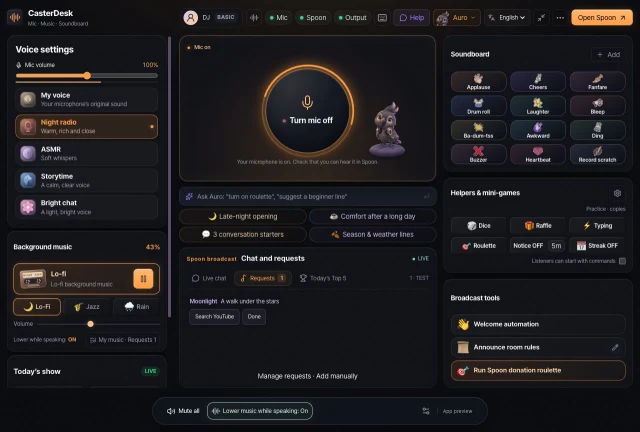
Choose from 5 voice presets. Set your mic input and output levels.
Play music and effects with one tap. Keep your tracks and requests in one list.
See live chat, gifts and likes from your linked Spoon stream. No extra window.
Basic includes Spoon linking, music file playback and gift roulette. Only Korean Spoon accounts can link.
Auro celebrates with you.
Your voice takes on a new tone.
It goes straight to the list.
Desk mates
Auro helps you prepare and celebrates gifts. When it’s quiet, Auro stretches beside you.
Pick who sits beside you today in the app settings.
Try Free first. To connect your Spoon show, start with Basic. Right now Pro has the same features as Basic. You just get 5× more Ask Auro (AI) each day.
Free costs nothing. Basic is KRW 4,900 for one month, and Pro is KRW 9,800 for one month.
For Spoon chat and gifts on one screen
Applies only to the account you bought it with
Mac installer details ·
Install, open the app, and choose your mic.
Sign in with the account and method used for your purchase.
Mac: macOS 26+ (Apple Silicon) · Windows: Windows 10+ (x64)
Download → Open → Connect audio
Download the DMG for Mac or the EXE installer for Windows.
On Mac, open the DMG and drag CasterDesk into Applications. On Windows, run the EXE and follow the prompts.
Mac signing and notarization await Apple developer approval. SmartScreen may warn if a file or publisher has little reputation data.
The Mac installer is awaiting Developer ID signing and notarization, so Gatekeeper may warn you. Only open files you can verify came from CasterDesk’s official download.
After verifying the source, open the app once and choose System Settings → Privacy & Security → Security → Open Anyway. Reopen the app and review the warning.
If Windows SmartScreen appears, check the installer name and publisher first.
Limited reputation data can trigger a warning, which alone cannot tell you whether a file is safe. Check its name and publisher, and only run files from CasterDesk’s official download.
Finish setup and sign-in in the app.
Choose your microphone and audio output, then sign in to the app with the same account and method you used to buy your pass.
Find answers, from setup to refunds.
8 questions
Let Auro join your next show