Skip to content

Set up your sound in three steps.

Start voice tuning, BGM and short videos here.

  1. First, pick your mic and where the sound goes.
  2. Pick a voice style, then turn your mic on.
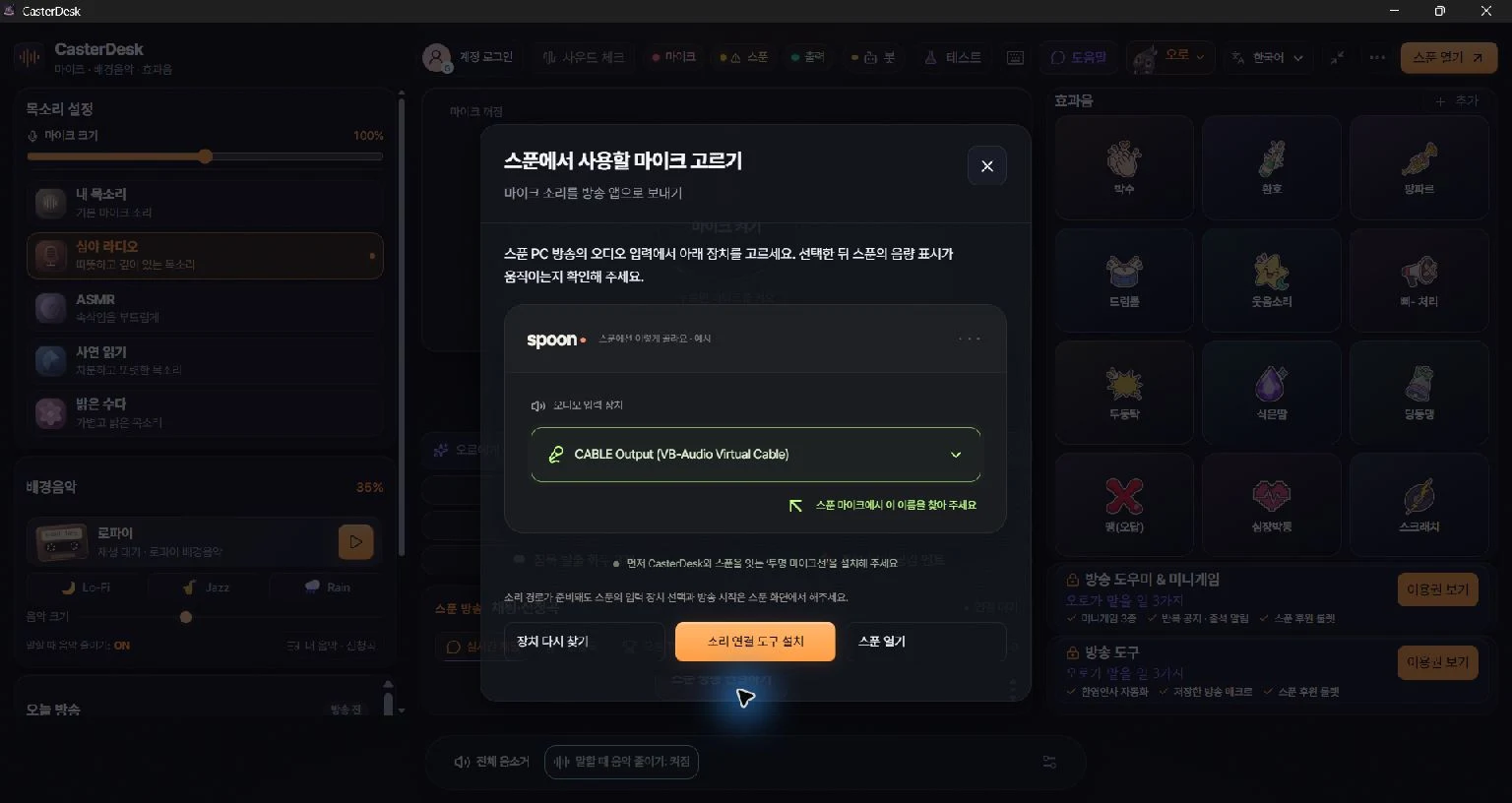
  3. Choose the same virtual mic in Spoon. Check your sound there.
Contact support

Feature guide

Try your broadcast toolsAuro is here to help

Try voice, music and chat for your Spoon show.

Take it step by step 🎧
Give each one a try

Get a feel for it before your show

Play a sound. Ask Auro for a hand.

One sound pad changes the mood

From Free
Feature details & availability

Set the mood with your voice and sounds.Choose from five voice presets and try a sound pad.

  • 5 voice presets (2 in Free)
  • 12 built-in sounds · add your own files
  • Music ducks on its own when you talk
Everything here stays in your browser. Nothing goes out to a live broadcast.

See the full app
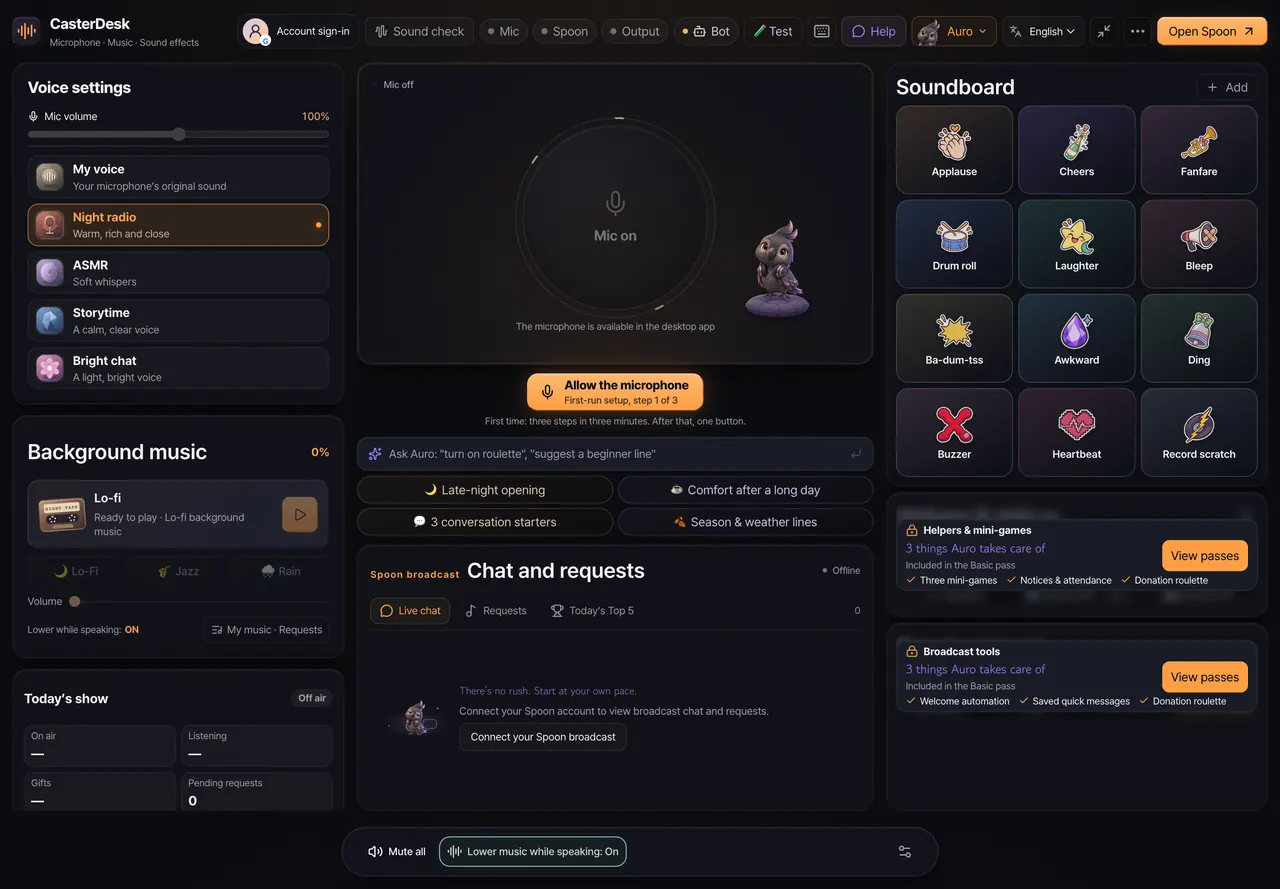
CasterDesk app screen
All features & plan availability

Made for

  • Spoon radio DJs
  • Anyone who runs their show solo
  • DJs switching between chat, music and sounds

Voice

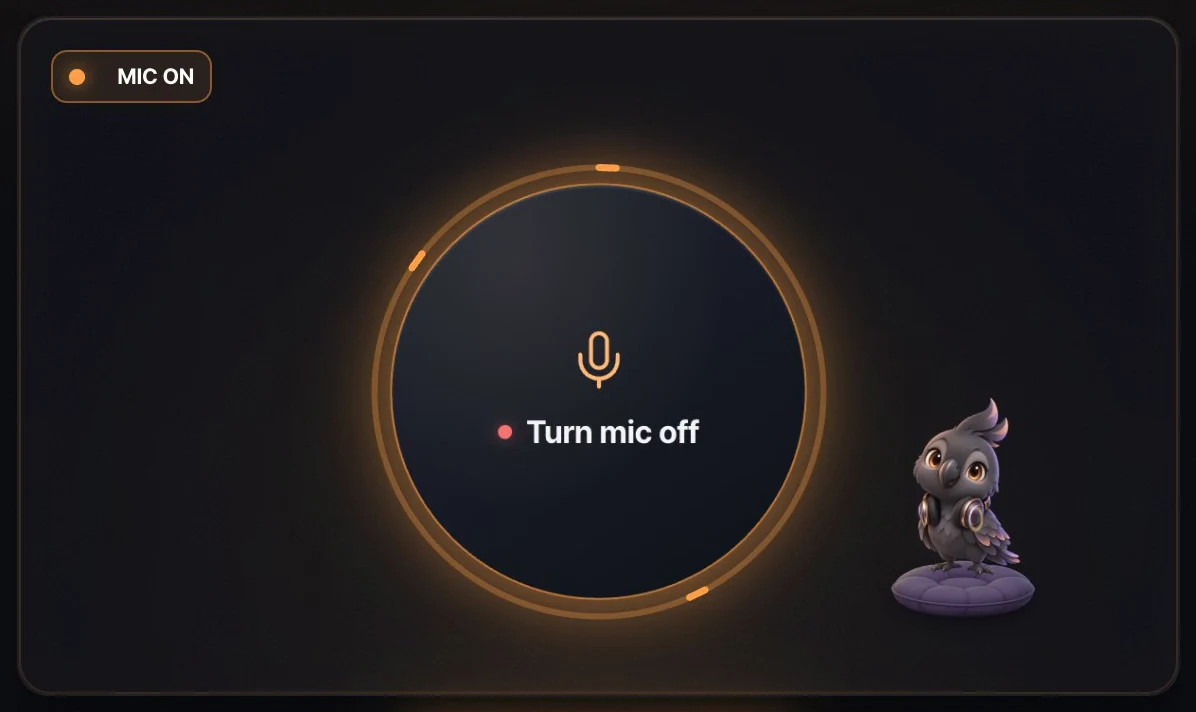
Example screen: your voice changes tone when the mic is on
  • Shape your tone and reduce noise as you talk
  • 5 voice presets: Natural · Night radio · ASMR · Storytime · Bright chat
  • Free includes 2 (Natural · Night radio)

Music & sound pads

  • 3 music loops: lo-fi · jazz · rain
  • Start talking and the music dips on its own
  • Use 12 sounds, including applause, cheers and drum rolls. Add your own, too.

Spoon connection

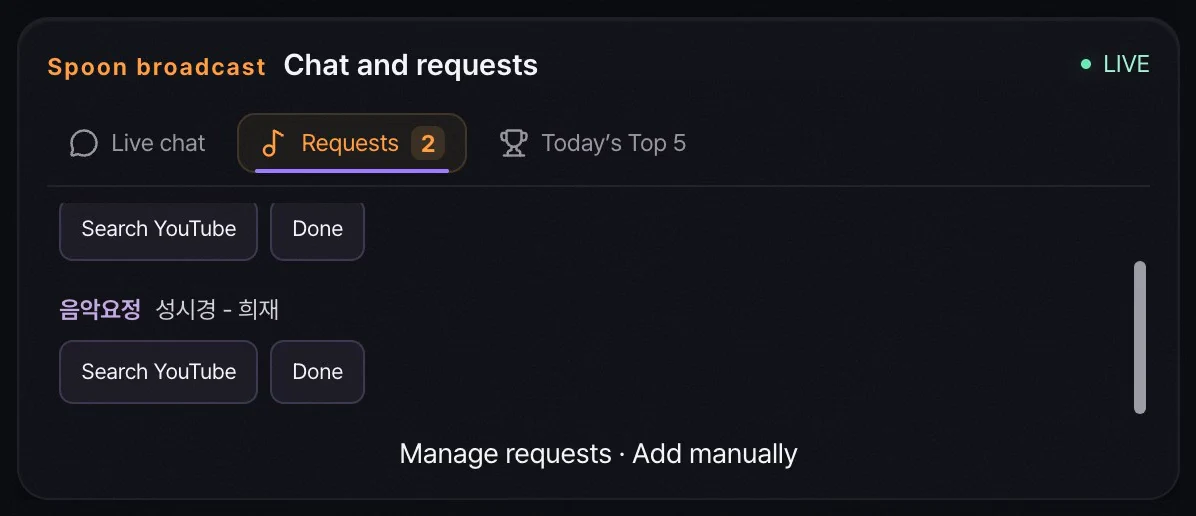
Example screen: song requests from chat gather in the list
  • Get chat, song requests and gift alerts
  • Gift roulette
  • Auto greetings · room rules
  • Available from Basic · Korean Spoon accounts only for now

Auro

Auro the parrot waving a wing
  • A parrot mascot who keeps you company on air
  • Auro shows you around and reacts to your touch.
  • Pick from 5 characters (Auro, Ruby, Momo, Lumi, Coco)

Pricing

FreeFree

2 voice presets · music · sound pads

ProKRW 9,800 / 1 month

5× the daily Ask Auro (AI) allowance.

Other features currently match Basic.

Paid passes: pay once for 1 month · no automatic renewal · tax included

Get started in 3 steps

Install CasterDesk and connect your sound to Spoon. Auro guides your first setup.

  1. Install

    Download the Mac or Windows installer.

  2. Sign in

    Sign in with Google.

  3. Mic & Spoon

    The first-run guide walks you through it

Mac

Open. Drag. You’re in

Drag the app to install it.

Open the DMG and drag CasterDesk into Applications.

CasterDesk Mac installer
  1. Open the DMG
  2. Drag into Applications
  3. Open Anyway
Once copied, open CasterDesk from Applications.

Your Mac asks once. Choose Open Anyway in System Settings → Privacy & Security.

Windows

At home on Windows

Open the installer to get started.

Follow the installer’s steps.

Windows installation illustration
  1. 1Download and open the Windows installer.
  2. 2Follow the installer’s steps.
  3. 3Open CasterDesk and follow the first-run guide.

If Windows SmartScreen appears, check the installer name and publisher first.

If you downloaded the file from the official CasterDesk site, choose More info → Run anyway to continue installing.

Microphone & sign-in help

Allow microphone access on first use

Choose and turn on your mic in the app. Allow access when prompted.

If access was denied or there is no sound, open Microphone in Windows Settings. Enable device, app and desktop app access, then turn your mic on again in CasterDesk.

If you bought a pass, use the same account and sign-in method as on the website.

03 · Send sound to Spoon

An invisible cable
for your sound

The line that carries your sound to Spoon.

BlackHole on Mac, VB-CABLE on Windows. It just works.

Spoon audio setup screen
Find the device names for your computer below.
  1. 01

    Set up the cable

    Set up the cable for your computer.

    Install it with the app’s sound setup guide.

  2. 02

    Send from CasterDesk

    Send voice and music through the cable.

    Choose your mic and set output to the installed cable.

  3. 03

    Receive in Spoon

    Receive your broadcast audio in Spoon.

    Set Spoon’s mic to the matching cable and check your voice and applause.

See the exact device names
MacCasterDesk BlackHole 2chSpoon BlackHole 2ch
WindowsCasterDesk CABLE InputSpoon CABLE Output

Link Spoon in the app for chat, song requests and gifts. Available from Basic, for Korean Spoon accounts only.